MusicWrite upgrade to QuickScore Elite
Users of Voyetra's MusicWrite Maestro, MusicWrite Songwriter or MusicWrite Starter Kit now qualify to upgrade to QuickScore Elite Level II 2019 for just $99.95 or to QuickScore Elite 12 for just $49.95. And now when you order, thanks to a special arrangement with Neuratron, get a copy of their top-rated music scanning software for just $20.
Upgrade
to QuickScore Elite Level II 2019 for $99.95.
Upgrade
to QuickScore Elite 2012 for $49.95.
QuickScore Elite seamlessly reads and writes MusicWrite Maestro, Songwriter or Starter Kit files. Users of MusicWrite will find themselves right at home with QuickScore Elite, and will find a wealth of new features, refinements and capabilities. The new features in QuickScore Elite Level II 2019 listed below are in addition to what is available in MusicWrite Maestro. MusicWrite Songwriter or MusicWrite Starter Kit users will find much more that is new!
QuickScore Elite Level II 2019
Download the QuickScore Elite Level II 2019 MIDI Edition
Download the QuickScore Elite 2012 MIDI Edition
QuickScore Elite Level II 2019 new features at a glance
Input
Audio
- Save MP3 and WAV digital audio files
- Audio Editor window
- Audio Mixer window
- QuickAudio Audio Editor included
- VST Plugins supported
- ReWire supported
- Import notes from audio files
- Improved audio playback and recording
- Real-time playback of audio tracks and effects
Formatting
- Print condensed scores
- Space lyrics automatically
- Smarter bars of rest
- Better bar numbering
- Intelligent system indentation
- Display notes without stems or beams
- Control the display of tied notes
- Change the spacing between staves
- Reduced Staves
Miscellaneous
- Zoom your score display
- See the page as it will be printed while editing
- key signature, time signature, barline and single staff/two staves buttons
- Double dotted notes
- 128th notes
- Irregular tuplets
- Composite time signatures
- Easy half note triplets
- Improved Song Editor
- Quarter tones and microtones
- Transcribe Audio
Entering and Editing
- Edit several files at once
- Edit symbols with one click
- Instantly enter slurs and tuplet brackets
- Separate voices automatically
- More tuplets
- Create 4 and 5 String Tablature and Chords
- New Guitar Symbols
- New Harp Symbols
- New Woodwind Symbols
- New Organ Symbols
- New Jazz Symbols
- Import Graphics
- Create Custom Symbols
- Create Custom Noteheads
- New Note Heads for Entry of 7 Shape Note System
- Show Muted Tablature Notes
- Put Notes in Parentheses
- Speed Up Entry of Notes and Symbols
- Use the Mouse Wheel in all Windows
- Cut and Paste Text in Edit Boxes
- Easier drum tracks
- Enter Dotted Slurs
- Set a note's written duration independently of its played duration
- Extract the rhythm from any passage and apply it to another section of music
- Change beam slant
- Split beams
- Fast shape notes
Symbols
- Create custom symbols
- Create custom noteheads
- New guitar symbols
- New harp symbols
- New woodwind symbols
- New organ symbols
- New jazz symbols
- New handbell symbols
- New percussion symbols
File Support
Playback
- More MIDI channels
- Automatically play chord names, guitar chords, dynamics, tempi, quarter and microtones and pedal markings
- VST Plugins
- High quality instruments
- Real-time playback of audio tracks and effects
- Control Active Sensing
Edit several files at once
Multiple files can be open at once, and it is possible to cut and paste between them at will, using the clipboard.
It is possible to open a new instance of the program simply using New... under the Window menu.
Multiple tracks cut or copied in the Song Editor can now be pasted using the paste function in the current or a new instance of the program. This is very useful for arranging of songs from multiple sources.
Save MP3 and WAV digital audio files
Saving as .MP3 and .WAV files is now possible. Use the .MP3 or .WAV file type in the Save As file dialog under the File menu.
Print condensed scores
Condensed scores can be displayed and printed. Set printing of condensed scores using Print Condensed Score under the Display menu.
Abbreviated tracks names can be displayed in condensed scores. Set these using Print Condensed Score under the Display menu.
Space lyrics automatically
When using Engraver spacing (selected in the Score dialog under the Display menu) spacing for lyrics and accidentals is automatically calculated so as to avoid overlapping of lyrics, notes and accidentals.
Edit symbols with one click
One-click editing of Adjustable Symbols, Guitar Tablature, Chord Names, Tempo Symbols and Figured Bass Symbols is now possible. When editing symbols, use the new Adjust tool for this purpose.
When editing and entering of slurs and tuplet brackets, the start and end position of these symbols is now governed by the Duration Value. This makes the anchoring of slurs and tuplet brackets to notes extremely quick and easy. It is possible to change the Duration value while editing or entering adjustable symbols using the Durations Palette.
Instantly enter slurs and tuplet brackets
It is possible to enter a slur or a tuplet simply by control-clicking the notes at the endpoints of the slur or tuplet, while in note entry mode (with the note selected in the Object Type palette).
Separate voices automatically
Sections of music as large as a track can be analyzed and separated into voices. While in note entry mode (with the note selected in the Object Type palette) choose the notes to be separated into voices by dragging the mouse or choosing Select Track from the Edit menu and then choose Separate Voices from the edit menu that appears.
Read and write MusicXML files
Open and Save MusicXML files with virtually all supported symbols read and written. This allows the exchange of files between QuickScore and other music notation, scanning and analysis programs with virtually all the scoring information intact.
Better NIFF files
When reading NIFF files, virtually all supported
symbols are now read.
More tuplets
Odd-numbered tuplets such as 5ths, 7ths, 11ths, etc., can be entered and displayed (using No Quantization). Currently to enter odd-numbered tuplets, you must enter one or more notes in the beat to contain the odd-numbered tuplet, then select it by dragging the mouse with the arrow tool selected. Choose Rhythm from the Edit menu that appears and then the tuplet you want from the list box of different rhythms. Edit the pitch of the tuplet notes using the NS tool. For odd-numbered tuplets to appear correctly, No Quantization must be selected and an appropriately large steps per quarter value (set in the Display Score dialog under the Display menu) must be used (960 is good).
Smarter bars of rest
Consolidating rests using Bars of Rest under the Display menu checks for rehearsal marks, key sig, time SIG changes, double and repeat barlines, breaking up groups of rests around these marks.
Better bar numbering
It is now possible to start numbering the bars for a piece from a number larger than one. Set this using the Bar Numbers dialog under the Display menu.
Intelligent system indentation
Automatic system indentation is possible. Set this by selecting Automatic for System Indentation in the Display Page dialog under the Display menu.
Audio Editor window
The Audio Editor can be used to edit audio data such as vocals or sound effects. As many tracks as can fit on the screen can be seen at once. At the left are the track names and each track's audio data are shown to the right of the names. 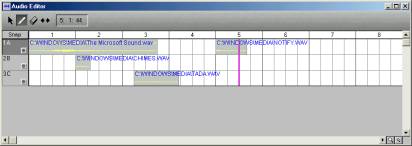
QuickAudio
QuickAudio lets you edit, play and record digital audio as well as convert between various popular audio formats. It has standard audio editing features, audio spectrum analysis as well as support for up to 24 VST plugins. 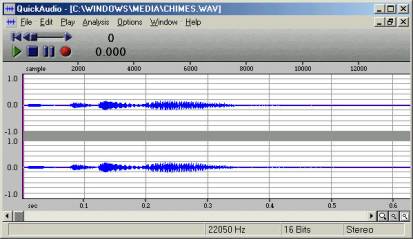
VST Plugins
VST plugins extend QuickScore's functionality in many different ways. You can load new virtual software synthesizers, drum kits and orchestral sounds not available on your sound card, and manipulate them in unbelievable ways. You can edit and morph your audio, and generate new MIDI or audio material to go with music you've already entered.
Import notes from audio files
Extract notes from audio data. The notes are inserted into the track containing the audio data and can be displayed and edited using any of QuckScore’s note editors.Easier drum tracks
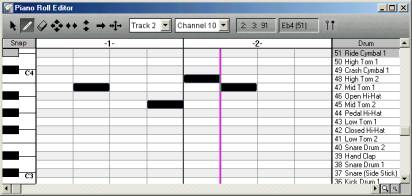
In the Piano Roll Editor simply click on the Show Drum Names button to show the drum name associated with each pitch. Click on it again to hide the drum names.
Generate Accompaniments
Now generate complete accompaniments from chords, tablature chords or notes in your tracks. Choose from a variety of styles, from baroque to reggae, or even create your own.
Create 4 and 5 String Tablature and Chords
Create tablature and chords for any 4 or 5 string instrument, including 4 and 5 string bass, 4 and 5-string banjo, ukulele, mandolin, bouzouki and pipa. Of course all 4 and 5 string tablature and chords play correctly according to the tuning you choose.
New Guitar Symbols
There is a complete set of new guitar symbols. They can be found in the new Guitar symbols palette and in the Adjustable symbols palette.
New Harp Symbols
There are new harp symbols in the Miscellaneous and Adjustable symbols palettes.
New Woodwind Symbols
There are new woodwind tonguing symbols in the Marks symbols palette.
New Organ Symbols
There are new organ heel and toe symbols.
New Jazz Symbols
There are new jazz symbols (doit, diagonal lines) in the new Jazz symbols palette.
Import Graphics
Now you can import and place any bitmap file. Take bitmaps from anywhere you find them - even use exported music from QuickScore or Copyist to create ossia measures.
Create Custom Symbols
You can create up to 80 custom symbols from bitmap files and incorporate them into a composition. Select them from any of your bitmap files, or create them from scratch, scale them to the size you want and then simply enter them from the Symbols Palette.
Create Custom Noteheads
Create up to 8 custom noteheads from bitmap files and use them any time you need them. Select them from any of your bitmap files or create them from scratch. They're automatically available from the Edit menu when you want to change note heads.
New Note Heads for Entry of 7 Shape Note System
Attention shape note singers! In addition to the 8 custom note heads, we've added two new note heads that are always available to complete the 7 shape note system.
Show Muted Tablature Notes
Now it is possible to automatically display muted or slapped notes in tablature staves with an X.
Put Notes in Parentheses
Notes, guitar fret numbers and muted or slapped notes notated with x marks can be within parentheses, brackets or carets.
Speed Up Entry of Notes and Symbols
Now you can select different guitar symbols using the left and right
arrows as you enter them with pen tool.
Selected slurs, circled numbers, guitar fingers and numbers in parentheses
can now be changed directly from the edit menu.
Change note durations with the left and right arrow keys while entering
with the arrow tool or using step entry in the Score and Piano Roll
editors. Use shift left and right arrow keys to change the dotted value.
This allows you to enter notes without moving your mouse to the durations
palette at all.
Now you can keep the Symbol palettes open after selecting a symbol.
This is useful when you need to enter many different symbols at the
same time.
Display Notes Without Stems or Beams
Stem direction can be set to neither, to display notes without stems or beams. This is available in the Display Bar, Display Track and Display Score dialogs.
Use the Mouse Wheel in all Windows
The mouse wheel works in all windows to scroll the display.
Cut and Paste Text in Edit Boxes
Ctrl-C and Ctrl-V can be used to cut and paste text in edit boxes.
Control The Display of Tied Notes
QuickScore automatically generates tied notes for you if necessary. Usually you get exactly what you want. But if you want something out of the ordinary, now you can make sure that you get it no matter how complicated a tied note structure you need. Choose two or more notes of the same pitch immediately following each other and select Tie -> Explicit from the Edit menu. Presto! the notes are automatically tied together.
Enter Dotted Slurs
New dotted slurs are available from the Adjustable Symbols Palette.
Control Active Sensing
There is a new option to pass thru Active Sensing in the MIDI Thru dialog, available from the Options dialog. This is off by default. Active sensing is sent by many keyboards to let a host know if it is attached or not. But passing through this message to a sound module often doesn't make sense.
Virtual Keyboard
We've added a virtual keyboard, which can record in real-time and step-time just like a real keyboard.
More MIDI channels
Up to 128 simultaneous channels are available for MIDI and VST instruments.
Automatically play chord names, guitar chords, dynamics, tempi and pedal markings
Now when you enter chord names, guitar chords, dynamics, tempo symbols and pedal marks, they play automatically! Select Play Symbols from the Options menu to change the way symbols will play.
Better audio
Up to 96 24-bit audio input and output channels are supported. Sample rates of up to 192 Khz are supported. Internally, audio signal paths are 32 bits wide. Files can be saved at bit depths of up to 24 bits.
Real-time playback of audio tracks and effects
real-time VST effects for audio tracks are now supported. Real-time
control of effects is now possible, allowing sound morphing, as well
as easy adjustment and auditioning of effects. Effects that require
multiple passes are fully supported.
Audio Mixer window
There is a new Audio Mixer window.
Record multiple audio tracks simultaneously
In the Audio Editor, it is now possible to record multiple tracks of audio at once. Sample rates of up to 192 Khz and bit depth of up to 24 bits are supported.
Rewire
Rewire is supported.
Zoom your score display
It is now possible to zoom the display of the Score Editor. You can change the size of the score display by a percentage, or fit the score page to the window width or to the window height. The new zoom options are available in the View menu.
See the page as it will be printed while editing
The Score Editor now respects the print scaling, page orientation and size of the printed page (portrait, landscape, letter, legal, etc.). When you set print scaling, page size or orientation in the Print Setup dialog under the Score menu, the score automatically adjusts. The default displayed page width is now wider, giving a more comfortable appearance.
Print Preview now reflects the width of margins, print scaling, page orientation and page size.
Now there's a button for that
There are new key signature, time signature, barline and single staff/two staves buttons in the control area of the Score Editor. They allow changing key signature, time signature or barline at the current bar, or setting the track to display as a single staff or as two staves.
Double dotted notes
Double dotted notes can now be notated. Double dotted notes are available from the Duration Qualifier.
128th notes
128th notes can now be notated. A 128th note icon is now available from the Durations palette.
Irregular tuplets
It is now very simple to enter irregular tuplets (such as 5, 7, 9, 11, etc.). Irregular tuplets can be set from the Duration Qualifier.
Change the spacing between staves
It is now possible to change the spacing between individual staves anywhere in the score, using the spacing tool.
Split beams
Split beams are now possible. They are available when choosing Group from the Edit menu when editing notes.
Change beam slant
You now have control over the beam slant of any group of beamed notes. This is available when choosing Group from the Edit menu when editing notes.
Composite time signatures
Composite time signatures are now available. When a composite time signature is used, the grouping of notes automatically reflects the composite time signature.
Extract the rhythm from any passage and apply it to another section of music
It is now possible to extract the rhythm from any music, save it and then apply it to another passage. Select your music, choose Create Rhythm from the Edit menu and give a name to your selected rhythm. The new rhythms can be applied to another selection of music by choosing Rhythm from the Edit menu.
Set a note's written duration independently of its played duration
It is now possible to force the display of a note's durations to any value. This can be useful when notating free passages or music or where the actual durations of notes do not correspond to what should be notated. Select a note or group of notes and choose Display As from the Edit menu to force display of note durations to a given value.
Easy half note triplets
Half note triplets can now be displayed without special adjustments.
Better looking music
The algorithm for determining the height of stems has been improved.
The spacing of passages where different tuplet values exist simultaneouslys (e.g. triplets playing alongside duple eighth notes) has been made smoother.
Some wide note groupings which previously displayed with straight beams now display with slanted beams.
The spacing of chords with notes offset by one note has been improved.
The positioning of accidentals in chords with notes offset by one note has been improved.
The display of notes tied over from previous pages to the first bar of the current page has been improved. Now all tied notes are displayed.
When spacing music with the Space Music dialog, the space for key signature and time signature changes is now taken into account.
Better looking display
The appearance of QuickScore's windows has been enhanced by replacing many bitmaps with cleartype fonts.
The display of symbols which cross the upper and lower boundaries of the Score Editor display has been improved. Now all visible symbols appear completely to the edge of the display.
Less muss, less fuss
When changing steps per quarter in the Display Score dialog, it is now possible to adjust the timing of all events to the new steps per quarter.
The maximum number of symbols per page has increased from 3000 to 10000, eliminating the "Maximum workspace size reached." message.
High Quality Instrument Sounds
The new FluidGM GM soundfont player VST instrument is now included, allowing very realistic instrument sounds. FluidGM uses the FluidSynth soundfont player engine and the Fluid R3 GM soundfont. To use it, first make sure you are using QuickScore's VST plugin folder. This is set in the Audio Setup dialog under the Options menu. Choose Synths and MIDI Effects from the View menu. In the Software Synthesizers and MIDI Effects window, click on New and choose FluidGM. Set the output for the FluidGM synth. In the Track Sheet, set the output to FluidGM for any tracks that you wish to play using the FluidGM soundfonts.
The FluidPlayer general soundfont player VSTi is included.
The Qverb reverb VST effect is included.
Fast Shape Notes
There is now an edit function to automatically set 4 or 7 shape note heads, without having to select each note individually. This is available by selecting Edit Score from the Edit menu, or by choosing Note Head when selecting notes.
Reduced Staves
Reduced staves can now be printed. Set reduced staves from the Display Track dialog under the Display menu. Reduced staves are printed and can be seen in Print Preview, but not when editing.
New Song Editor
The Song Editor now displays music more intuitively and precisely. Notes are shown in piano roll notation; controllers, pitch bend, aftertouch, program changes and tempo changes are shown as amplitude bars; text and symbols are shown at their position relative to the staff; and audio files are displayed with their full duration.
New Guitar Symbols
There is a complete set of new guitar symbols. They can be found in the new Guitar symbols palette and in the Adjustable symbols palette.
New Harp Symbols
There are new harp symbols in the Miscellaneous and Adjustable symbols palettes.
New Woodwind Symbols
There are new woodwind tonguing symbols in the Marks symbols palette.
New Organ Symbols
There are new organ heel and toe symbols.
New Jazz Symbols
There are new jazz symbols (doit, diagonal lines) in the Marks symbols palette.
New Handbell and Percussion Symbols
A full set of handbell and percussion symbols has been added. Handbell symbols are in the Articulation Marks palette and percussion symbols are in the new Percussion palette. Jazz symbols have been moved to the Articulation Marks palette.
Create Custom Symbols
You can create up to 80 custom symbols from bitmap files and incorporate them into a composition. Select them from any of your bitmap files, or create them from scratch, scale them to the size you want and then simply enter them from the Symbols Palette.
Create Custom Noteheads
Create up to 8 custom noteheads from bitmap files and use them any time you need them. Select them from any of your bitmap files or create them from scratch. They're automatically available from the Edit menu when you want to change noteheads.
Quarter Tones and Microtones
There is now support for quarter tones and microtones. To select quarter tones and microtones, select a note or group of notes and choose Quarter/Microtone from the Edit menu. Quarter tones and microtones can be played. Playing quarter tones and microtones is set in the Play Symbols dialog in the Options menu.
Transcribe Audio
Monophonic and polyphonic note detection as well as chord detection
from audio files or from audi recorded in real time is now possible.
Tempo can also be generated from audio files.
Upgrade
to QuickScore Elite Level II 2019 for $99.95.